Troubleshooting and Support
Running into issues? Find fixes for common problems, performance tips, and support guidance for all SiriusMC servers here.
- FAQs, and Common Issues and Fixes
- Errors "Failed to login - null" or "Failed to login - invalid session" when joining a server
- Updating Java 8
- Machines Not Breaking Blocks Inside of Claims
- Claim Expiry / Regeneration on SiriusMC
- What Are Banned Items on SiriusMC?
- How Much RAM Should I Allocate?
- Cannot Extract Native Jar | Prism Launcher
- Support Guidance
FAQs, and Common Issues and Fixes
Here you can find frequently asked questions, and fixes to commonly encountered issues.
Errors "Failed to login - null" or "Failed to login - invalid session" when joining a server
Issue Description
These errors mostly happen when there is a Microsoft account authentication issue on your launcher, whether it is Technic or CurseForge.


Solution(s)
1. Closing the game and launcher completely, logging out from the launcher, and relogging back in are the most common fixes.
2. If that still doesn't work, you can navigate to %appdata%/roaming/.technic and delete the oauth folder.
If this still doesn't resolve the issue, you can open a support ticket on our Discord server.
Updating Java 8
|
Recently, Mojang changed its authentication system. Players using Java 8 versions older than Update 91 can no longer log in to Minecraft servers, including ours. To resolve this issue, update Java 8 on your computer. |
Step 1: Uninstall Your Existing Java 8 Version
CurseForge users may not have an existing Java 8 version installed. If not, skip to Step 2.
Older Java 8 versions lack critical security fixes and must be removed before installing the new version.
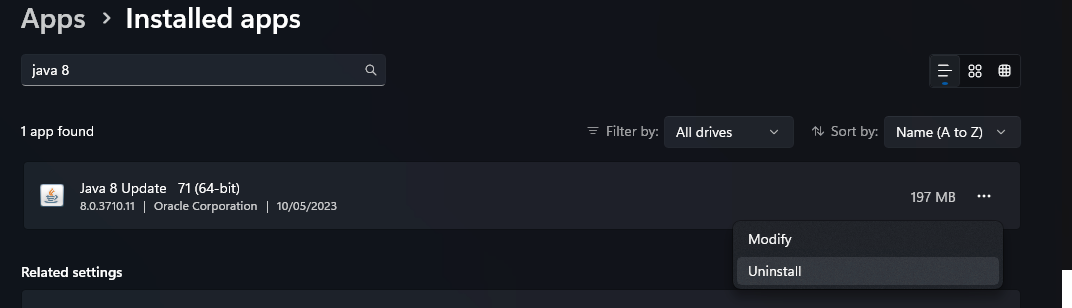
- Open Settings → Apps → Installed Apps.
- Search for Java 8 in the list.
- Select it and press Uninstall.
- Follow the confirmation prompts until it's entirely removed.
Step 2: Install the Latest Version of Java 8
|
This guide covers installing Oracle Java. Other Java binaries also exist from organisations such as Adoptium and Amazon, which can also be used. |
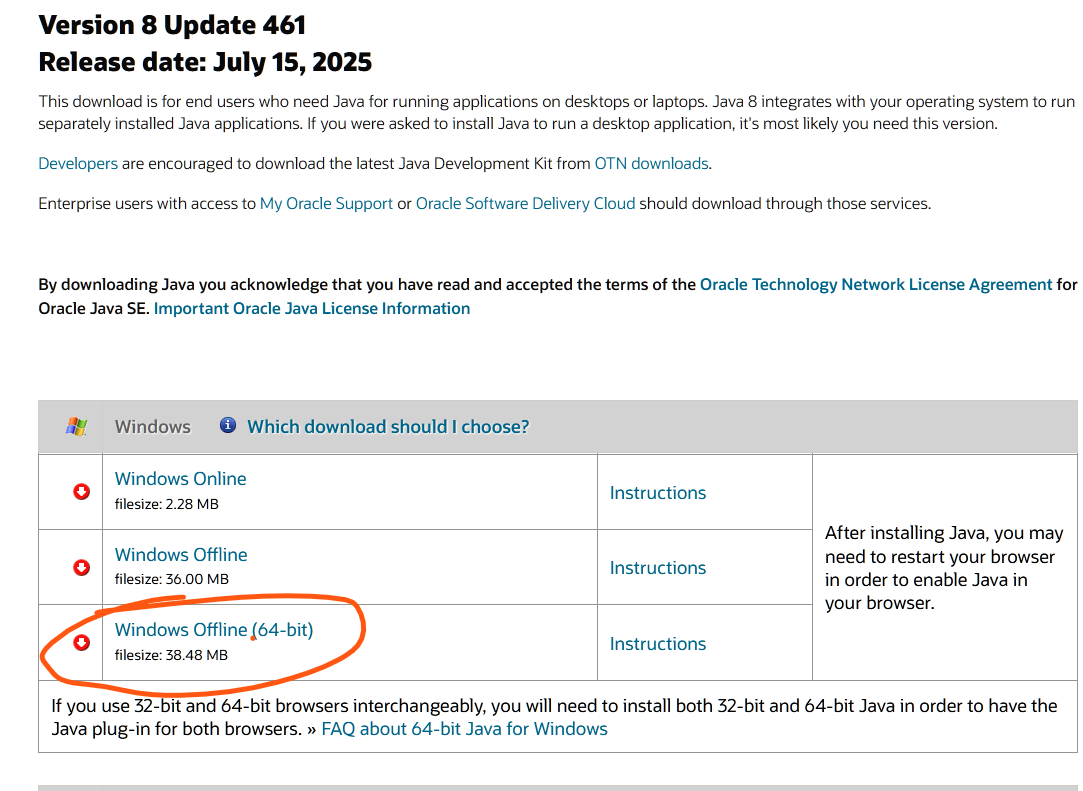
- Go to the official Java download page: Java 8 Manual Downloads.
- Under Windows, choose Java 8 (Offline 64-bit) and download the installer.
- Once downloaded, run the installer and follow the on-screen instructions.
Following this, you should have the latest Java 8 installed.
If you have other versions of Java installed, you may need to uninstall them or select the correct Java version in the relevant launcher settings.
Step 3: (CurseForge Only) Update Java Path in CurseForge Launcher
If you use the CurseForge launcher, you may need to change the Java path to point to the correct Java version.
- Open the CurseForge launcher.
- Select the settings cog on the bottom left of the launcher.
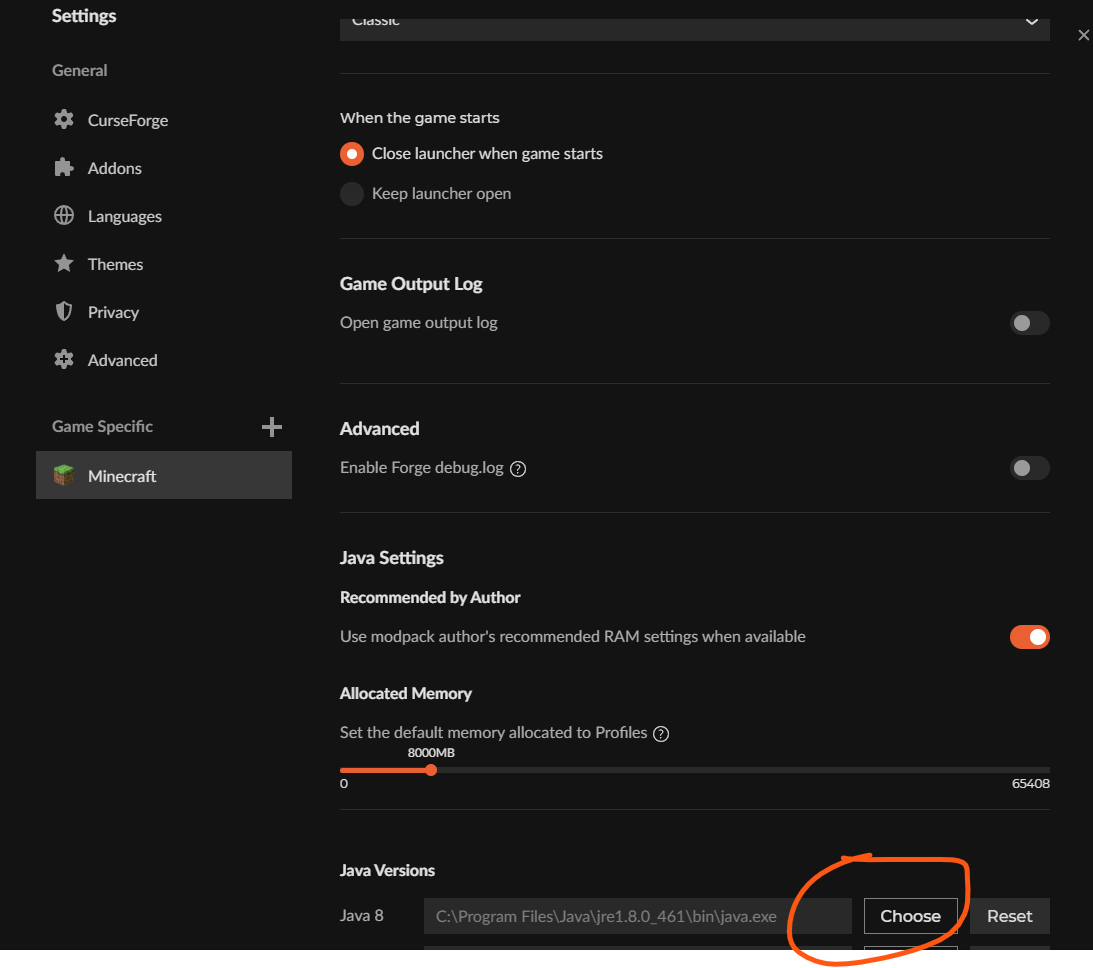
- Select Minecraft and scroll down to Java Versions.

- Select Choose.
- Type C:\Program Files\Java\jre1.8.0_461\bin as the file name and press Enter.

- Select java.exe.


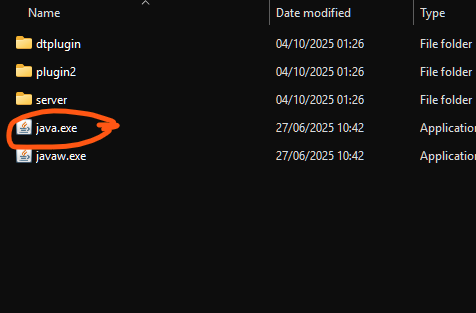
The file location may differ on certain systems. Contact staff if you are unable to find java.exe.
After this you should be able to join our servers using the CurseForge launcher.
Machines Not Breaking Blocks Inside of Claims
Step 1: Verify the Machine's Setup
- Redstone Control
- Ignore: The machine operates without a redstone signal.
- Low: The machine runs when it receives a low redstone signal.
- High: The machine runs only when it receives a strong redstone signal.
- Pulse: The machine operates only when it receives redstone pulses.
- Orientation: Confirm the machine is facing the correct work area.
- Range Upgrades: Check that any required range upgrades are installed.
- Power: Ensure the machine has sufficient power.
- Output Inventory: Verify there is enough space for output items, if applicable.
- Input Inventory: Verify there are sufficient input items, if applicable.
Still Not Working? Check Claim Permissions
If the machine still isn't working after completing the setup checks, it may not have permission to break blocks inside your claim.
- Stand inside your claim and run /autotrust
Automatically trusts any block-breaking action for 30 seconds. - Power on and activate the machine.
- The machine should now function correctly within your claim.
If the server you are on uses mods with "fake players", such as Just Dire Things, you can trust them manually using /trust <fake_player_name>. For example, the fake player name for Industrial Foregoing is #[IF].
Claim Expiry / Regeneration on SiriusMC
Q: How long do I have to be inactive before my claims are subject to regeneration?
120 days. Inactivity is tracked network-wide, not per server. So if you haven't logged into RLCraft for 120 days but have been active on ATM10, your RLCraft claims are still protected and cannot be regenerated regardless of any requests made.
Q: I want to claim somewhere, but someone who was last online 200 days ago has already claimed nearby. Can I get their claim removed?
Yes. If a player has been inactive across the entire network for more than 120 days, their claims become eligible for regeneration. To request the removal of someone's claim, you will need to open a support ticket.
Q: When staff clears an inactive claim, will the area be regenerated and does that delete everything?
Yes. When a claim regeneration is requested, any builds, containers, and entities within the claim will be removed.
Claim regeneration is never automatic - it only occurs when another player specifically requests it.
What Are Banned Items on SiriusMC?
Q: Why is <item> banned?
SiriusMC optimises gameplay for our players, and some more destructive items are banned. These items are banned due to their potential to harm server performance or the economy, or because they may be used to destroy claimed player bases.
Q: How do I know what items are banned?
Use /banneditems in-game to see the full list.
Q: What should I do if I think an item should be banned?
If you notice items or mods causing dupe glitches, claim bypassing, or imbalanced gameplay, please create a ticket on our Discord server.
How Much RAM Should I Allocate?
Q: How much RAM should I allocate to play on a server?
Modded servers often tell you how much RAM is needed for a smooth play through. We've compiled a list of our servers and their RAM recommendations here. However, you can find a compact list below:
| Tekkit SMP | 3–5 GB recommended |
| Tekkit 2 | 3–5 GB recommended |
|
The 1.12.2 Pack |
5–8 GB recommended |
|
RLCraft |
2–5 GB recommended |
|
ATM10 (All The Mods 10) |
8–10 GB recommended |
|
ATM10: To The Sky (ATM10:TTS) |
6–8 GB recommended |
Q: How do I know if I've not allocated enough RAM?
- Rubber-banding: You walk forward, and the game teleports you back to your previous location repeatedly.
- Chunks Not Loading: Nothing generating when walking into new areas.
- Stuttering and Lag Spikes: The game freezes for ~2 seconds, usually every 30–60 seconds.
- Out of Memory Crash: The game crashes entirely, showing an "Out of Memory" or "java.lang.OutOfMemoryError" error.
- Slow Inventory/GUI Interaction: Opening chests, crafting tables, or JEI items takes several seconds to load.
Cannot Extract Native Jar | Prism Launcher
Issue Description
When attempting to launch a modpack using Prism Launcher an error in the console states "Cannot Extract Native Jar".
Solution(s)
1. Stopping javaw.exe
-
- Open command prompt as an Admin
- Run tasklist and look for the process javaw.exe
- Run taskkill /f /IM javaw.exe
- When it says successful close command prompt and launch the modpack again
2. Linking Your Microsoft Account
-
- Click "Profile" in top right
- Select "Manage Accounts"
- Select your account
- Click add Microsoft
- Sign in with your Microsoft account
3. Re-linking Your Microsoft Account
-
- If your account is already linked you can re-link it
- Click "Profile" in top right
- Select "Manage Accounts"
- Right-click your account
- Click remove
- Click add Microsoft
- Sign in with your Microsoft account
Support Guidance
Guidance on where and how to submit bug reports, player reports, support tickets, and suggestions.
Before You Open a Ticket | SiriusMC
|
Before opening a ticket, we encourage you to read through the following, as it may help answer your questions. |
Many frequently asked questions and known behaviours are already documented. Before opening a ticket, please check:
- Common Issues and Fixes page (also known as our FAQ page)
- Server Information page
- Rules page
If nothing in those pages helps, try the following basic troubleshooting steps where applicable:
- Restart your Minecraft client
- Re-log or reconnect to the server
- Remove shaders or resource packs
- Ensure your modpack is fully up-to-date
Many visual or interaction issues are client-side and resolve after restarting.
At SiriusMC, our modded servers sometimes have mechanics that differ from default mod behaviour for balance or performance reasons. Common examples include:
- Banned items
- Nerfed items
- Scheduled dimension resets
If something is not working as expected, check:
- /BannedItems in-game
- Change-logs on our Discord
- Information boards at spawn
If you've checked everything above and still need assistance, open a ticket through our Discord or the Ticket Website:
Thank you for helping us keep support efficient and our servers running smoothly.
Ban Appeals | SiriusMC
|
If a player sanction (Mute or Ban) has been issued against you, you have broken a server rule and/or staff believed that your behaviour on the server was worthy of sanction. The length and severity of the punishment varies depending on the rule broken and the context behind it. Your previous player history also contributes to determining a fair ban length.
If you do not know the reason for your sanction, a searchable list of all bans and their reasons can be found at: https://bans.siriusmc.net/ |
If you feel you have been sanctioned unfairly, or believe the sanction issued to be too harsh, you can request a review by submitting a ban appeal. A review may result in one of the following outcomes:
- Sanction being rescinded (i.e. Unbanned/Unmuted)
- Sanction length being reduced
- Sanction length left unchanged
- Sanction length being increased
Warnings cannot be appealed. Only Bans and Mutes are eligible for appeal.
SiriusMC has a set process for dealing with all Ban Appeals, which we believe delivers a methodology that fairly evaluates every appeal. Please view the flowchart below for full details on how your appeal will be handled:

Please keep the following in mind before submitting your appeal:
- You only have one opportunity to appeal your sanction. Any further appeals will be automatically rejected.
- Make sure your appeal is honest, clear, and respectful. Appeals that are disrespectful or dishonest may negatively impact the outcome.
- Ensure you have reviewed the ban reason at https://bans.siriusmc.net/ before submitting.

When you are ready, submit your appeal by creating a ban appeal ticket in our Discord server, found under the support section, in the channel titled ban-appeals.
All tickets are confidential and can only be seen by SiriusMC staff.
Reporting Bugs | SiriusMC
|
Here at SiriusMC, we strongly encourage players to report any bugs they encounter in-game. As a reward, we offer Bug Bounties - a set amount of in-game currency based on the severity of the bug reported.
Before submitting a ticket, players are encouraged to review the Before You Open a Ticket page. |
Bug Report Procedure
There are two ways to report a bug:
- Through our Discord
- Through our Ticket Website
Both methods use the same layout and process.
How to Report a Bug
1. Open a ticket and include the following information:
- Your in-game name
- The server where the bug occurred
- A clear description of the bug (as detailed as possible)
- Steps to reproduce the bug
- (Optional) Screenshots or videos
2. Some bugs can be difficult to reproduce, so staff may ask follow-up questions to gather more information. Staff will attempt to replicate the bug and determine the bug bounty:
- If the bug cannot be replicated, the ticket may remain open for further investigation.
- If the bug can be replicated, you will receive a message in the ticket confirming the bug that was reproduced, the bug bounty you will receive, and the severity of the bug.
3. Once the bug bounty has been awarded, the ticket will be closed. At this point, the bug is moved to our Issue Tracker, where it is assigned to the Development Team.
Reporting Players | SiriusMC
|
SiriusMC is a community-focused network, and we strive to maintain a friendly and welcoming environment for all players. While our staff team actively monitors and supports the community, we also encourage players to report anyone who is breaking the rules or causing issues. |
Player Report Procedure
There are two ways to report a player:
- Through our Discord
- Through our Ticket Website
Both methods use the same layout and process.
How to Report a Player
1. Open a ticket and include the following information:
- Your in-game name
- The in-game name(s) of the player(s) you are reporting
- The reason for the report (as detailed as possible)
- Evidence, if available
- (Optional) The Discord name(s) of the player(s) you are reporting
2. Staff will review the report and may ask for additional information, such as:
- Additional context
- Further evidence
- A timeframe for when the incident occurred (if not already provided)
3. Once all information has been reviewed, staff will issue the appropriate sanction(s) to the reported player(s), if necessary.
Submitting a Suggestion | SiriusMC
|
As a community-focused network, we love hearing your suggestions and ideas! |
There are two ways to submit a suggestion:
- Through our Discord
- Through our Ticket Website
Both methods use the same layout and process.
1. Open a ticket and include the following information:
- Your in-game name
- The server the suggestion applies to (if applicable)
- A clear description of your suggestion
2. Staff will review and discuss the feasibility and appropriateness of your suggestion. After review, your suggestion will be accepted or rejected.
3. If your suggestion is rejected, we will provide an explanation for the decision where possible.
My suggestion was rejected without an explanation. Why?
If no explanation was provided, your suggestion likely fell into one of the following categories:
- Hosting a new modpack
- Adding a mod to an existing server
- Allowing players to sell items to the admin shop
How are suggestions reviewed?
When reviewing suggestions, we primarily consider two factors:
- The estimated development time required
- Whether the expected benefit justifies that development time
Opening a Support Ticket | SiriusMC
|
Support tickets are one of the primary ways to contact our staff team for help with issues that cannot be resolved using the Help-and-Issues channel on our Discord, or through reading the Wiki or FAQ pages.
Before opening a ticket, please ensure you have reviewed the Before You Open a Ticket page to avoid unnecessary delays in your ticket being handled. |
Support Ticket Procedure
There are two ways to open a support ticket:
- Through our Discord
- Through our Ticket Website
Both methods use the same layout and process.
How to Open a Support Ticket
1. Open a ticket and include the following information:
- Your in-game name (if applicable)
- A clear description of the issue you are experiencing
2. Staff will review your ticket and may ask for additional information if needed. Once all required information is provided, staff will assist you either within the ticket or in-game, depending on the situation.