# Updating Java 8

<table border="0" id="bkmrk-recently%2C-mojang-cha" style="border-collapse: collapse !important; width: 100%; border-left: 4px solid #a855a0; border-top: none; border-right: none; border-bottom: none; background-color: rgba(168, 85, 160, 0.08);"><tbody><tr><td style="padding: 8px 16px; overflow: visible; hyphens: none;">Recently, Mojang changed its authentication system. Players using **Java 8 versions older than Update 91** can no longer log in to Minecraft servers, including ours. To resolve this issue, update Java 8 on your computer.

</td></tr></tbody></table>

## Step 1: Uninstall Your Existing Java 8 Version

<p class="callout info">**CurseForge users may not have an existing Java 8 version installed. If not, skip to Step 2.**</p>

Older Java 8 versions lack critical security fixes and must be removed before installing the new version.

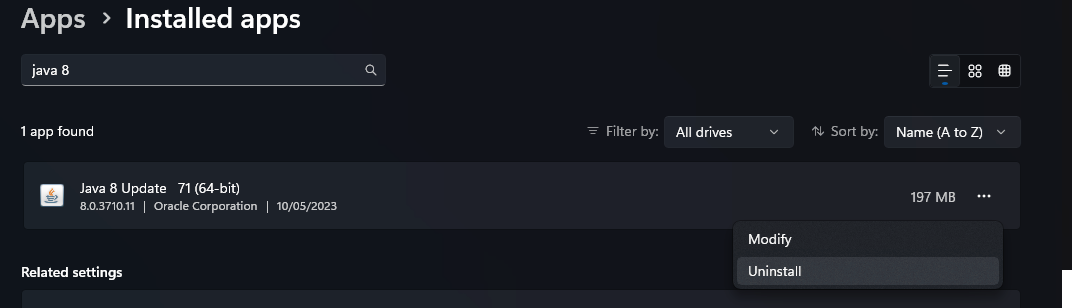
1. Open **Settings** → **Apps** → **Installed Apps**.
2. Search for **Java 8** in the list.
3. Select it and press **Uninstall**.
4. Follow the confirmation prompts until it's entirely removed.

[![Uninstall Java 8](https://siriusmc-bookstack.s3.amazonaws.com/uploads/images/gallery/2025-10/scaled-1680-/ZIndunrdQHtiOr0D-image.png)](https://siriusmc-bookstack.s3.amazonaws.com/uploads/images/gallery/2025-10/ZIndunrdQHtiOr0D-image.png)
## Step 2: Install the Latest Version of Java 8

<table border="0" id="bkmrk-this-guide-covers-in" style="border-collapse: collapse !important; width: 100%; border-left: 4px solid #a855a0; border-top: none; border-right: none; border-bottom: none; background-color: rgba(168, 85, 160, 0.08);"><tbody><tr><td style="padding: 8px 16px; overflow: visible; hyphens: none;">This guide covers installing Oracle Java. Other Java binaries also exist from organisations such as Adoptium and Amazon, which can also be used.

</td></tr></tbody></table>

1. Go to the official Java download page: [Java 8 Manual Downloads](https://www.java.com/en/download/manual.jsp).
2. Under Windows, choose **Java 8 (Offline 64-bit)** and download the installer.
3. Once downloaded, run the installer and follow the on-screen instructions.

[![Java 8 download page](https://siriusmc-bookstack.s3.amazonaws.com/uploads/images/gallery/2025-10/scaled-1680-/jkgaBbHcgvk8Sxfv-image.png)](https://siriusmc-bookstack.s3.amazonaws.com/uploads/images/gallery/2025-10/jkgaBbHcgvk8Sxfv-image.png)

Following this, you should have the latest Java 8 installed.

<p class="callout warning">If you have other versions of Java installed, you may need to uninstall them or select the correct Java version in the relevant launcher settings.</p>

## Step 3: (CurseForge Only) Update Java Path in CurseForge Launcher

If you use the CurseForge launcher, you may need to change the Java path to point to the correct Java version.

1. Open the CurseForge launcher.
2. Select the settings cog on the bottom left of the launcher.
3. Select **Minecraft** and scroll down to **Java Versions**.  
    [![CurseForge Java Versions setting](https://siriusmc-bookstack.s3.amazonaws.com/uploads/images/gallery/2025-10/scaled-1680-/AjnFyquPSpxipr26-image.png)](https://siriusmc-bookstack.s3.amazonaws.com/uploads/images/gallery/2025-10/AjnFyquPSpxipr26-image.png)
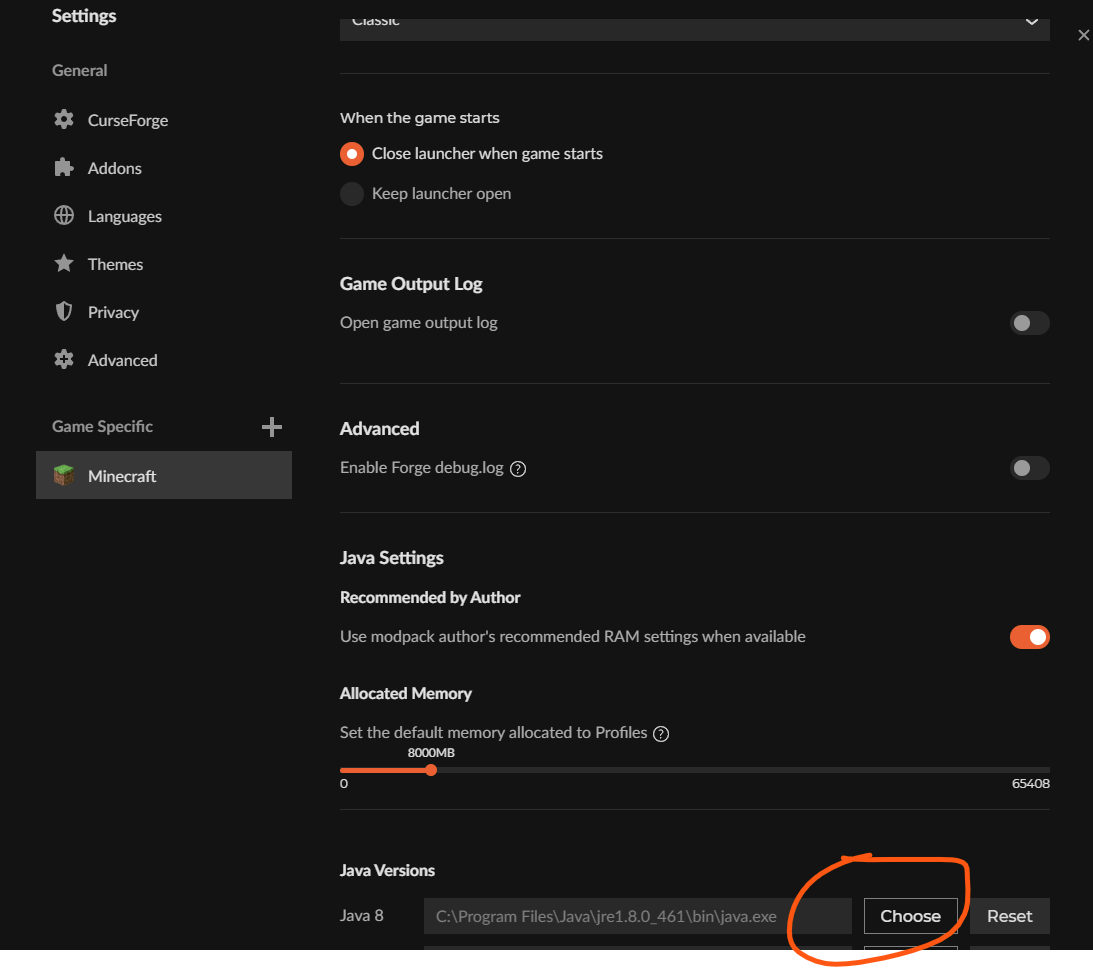
4. Select **Choose**.
5. Type **C:\\Program Files\\Java\\jre1.8.0\_461\\bin** as the file name and press Enter.  
    [![Java path in file browser](https://siriusmc-bookstack.s3.amazonaws.com/uploads/images/gallery/2025-10/scaled-1680-/3j0elj6n0mPE82T4-image.png)](https://siriusmc-bookstack.s3.amazonaws.com/uploads/images/gallery/2025-10/3j0elj6n0mPE82T4-image.png)

6. Select **java.exe**.  
    [![Select java.exe](https://siriusmc-bookstack.s3.amazonaws.com/uploads/images/gallery/2025-10/scaled-1680-/7skJ1M2aJVYG2XMi-image.png)](https://siriusmc-bookstack.s3.amazonaws.com/uploads/images/gallery/2025-10/7skJ1M2aJVYG2XMi-image.png)
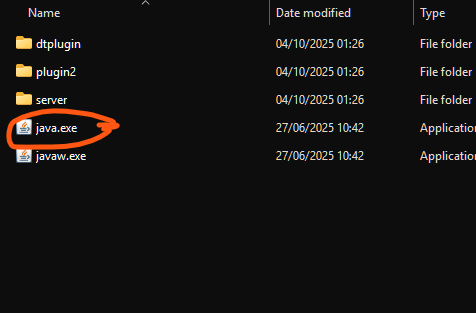
<p class="callout warning">The file location may differ on certain systems. Contact staff if you are unable to find java.exe.</p>

<p class="callout success">After this you should be able to join our servers using the CurseForge launcher.</p>